Linktree Alternative for Blogger Website (Step by Step)
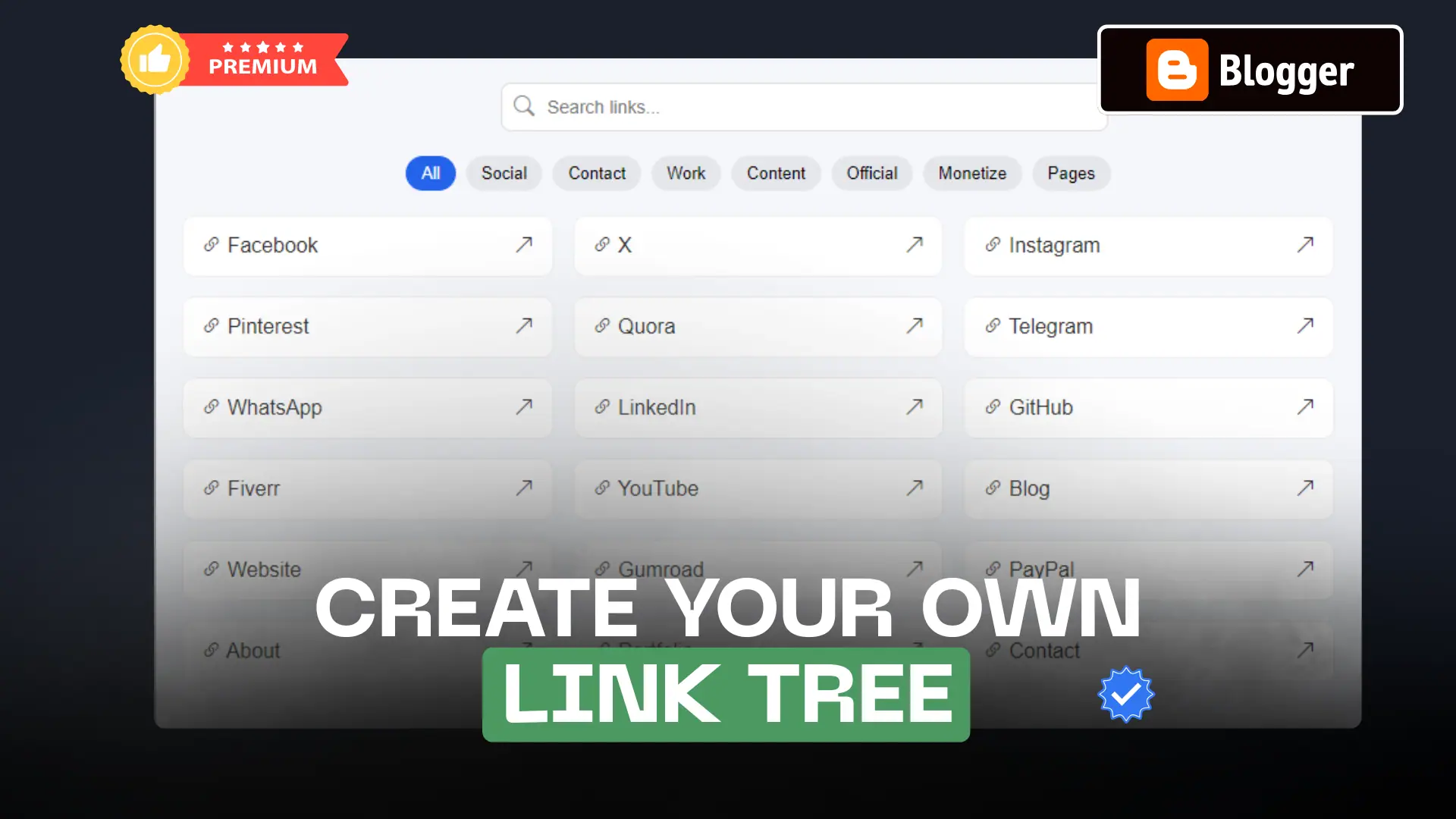
If you’re using platforms like Linktree to manage your social links, you’re giving away control, branding, and sometimes even traffic.
The better solution?
👉 Build your own Linktree alternative directly on your Blogger website.
In this guide, you’ll learn how to create a modern links page with search, category filters, and a responsive design using simple HTML, CSS, and JavaScript.
What is Linktree?
Linktree is a tool that lets you share multiple links using a single URL.
Instead of putting many links in your Instagram bio, YouTube description, or anywhere else, you just add one Linktree link — and it opens a page with all your important links.
Why You Should Create Your Own Linktree Page
Before jumping into the tutorial, let’s understand why this is worth it.
✅ Full Control: You control design, links, branding, and layout.
✅ No Third-Party Dependency: No risk of platforms changing rules, adding ads, or limiting features.
✅ Better SEO: Your links page lives on your domain → more traffic & authority.
✅ Monetization Friendly: Add affiliate links, products, services, and track clicks easily.
By the end of this tutorial, you’ll have Searchable links page, Category filters (Social, Work, Content, etc.), Mobile responsive design, Fast loading , Clean UI like Linktree.
How to Create Your Own Linktree Page in Blogger?

Step 1: Create a New Page in Blogger
- Go to your Blogger dashboard
- Click Pages → New Page
- Name it something like:
- Links
- Resources
- Connect
- Switch to HTML View
Step 2: Add the Code
Paste the given code and add your social media links. You can add more links and edit the categories.
<link href="https://cdn.jsdelivr.net/npm/[email protected]/font/bootstrap-icons.min.css" rel="stylesheet">

<style>
.LinkTree {
  max-width: 100%;
  margin: auto;
}

/* Search */
.search-box {
  position: relative;
  max-width: 400px;
  margin: auto;
}

.search-box input {
  width: 100%;
  padding: 10px 35px;
  border-radius: 8px;
  border: 1px solid #ddd;
  font-size: 14px;
}

.search-box i {
  position: absolute;
  top: 10px;
  color: #888;
}

.search-box .bi-search { left: 10px; }
.search-box .bi-x-lg { right: 10px; cursor: pointer; }

/* Categories */
.filters {
  text-align: center;
  margin: 15px 0;
}

.filters button {
  border: none;
  padding: 6px 12px;
  margin: 4px;
  border-radius: 20px;
  background: #e5e7eb;
  cursor: pointer;
  font-size: 13px;
}

.filters button.active {
  background: #2563eb;
  color: #fff;
}

/* Grid */
.grid {
  display: grid;
  grid-template-columns: repeat(auto-fill, minmax(220px, 1fr));
  gap: 15px;
}

/* Card */
.card {
  background: #fff;
  padding: 14px;
  border-radius: 10px;
  border: 2px solid #eee;
  display: flex;
  justify-content: space-between;
  align-items: center;
  text-decoration: none;
  color: #333;
  transition: 0.2s;
}

.card:hover {
  transform: translateY(-3px);
  box-shadow: 0 5px 15px rgba(0,0,0,0.08);
}

  a.card {
    text-decoration: none!important;
    Color: black;
  }

/* Highlight */
.highlight {
  background: rgba(37, 99, 235, 0.2);
  border-radius: 3px;
}

/* Empty */
.no-results {
  text-align: center;
  margin-top: 30px;
  display: none;
}
</style>


<div class="LinkTree">

  <!-- Search -->
  <div class="search-box">
    <i class="bi bi-search"></i>
    <input type="text" id="searchInput" placeholder="Search links...">
    <i class="bi bi-x-lg" id="clearBtn" style="display:none;"></i>
  </div>

  <!-- Filters -->
  <div class="filters" id="filters"></div>

  <!-- Grid -->
  <div class="grid" id="grid"></div>

  <div class="no-results" id="noResults">No links found</div>

</div>

<script>
const config = {
  links: [
    { name: 'Facebook', url: '#', category: 'social' },
    { name: 'X', url: '#', category: 'social' },
    { name: 'Instagram', url: '#', category: 'social' },
    { name: 'Pinterest', url: '#', category: 'social' },
    { name: 'Quora', url: '#', category: 'social' },
    { name: 'Telegram', url: '#', category: 'social' },
    { name: 'WhatsApp', url: '#', category: 'social' },

    { name: 'LinkedIn', url: '#', category: 'work' },
    { name: 'GitHub', url: '#', category: 'work' },
    { name: 'Fiverr', url: '#', category: 'work' },

    { name: 'YouTube', url: '#', category: 'content' },
    { name: 'Blog', url: '#', category: 'content' },

    { name: 'Website', url: 'https://key2blogging.com', category: 'pages' },
    { name: 'Gumroad', url: '#', category: 'services' },
    { name: 'PayPal', url: '#', category: 'services' },

    { name: 'About', url: '#', category: 'pages' },
    { name: 'Portfolio', url: '#', category: 'pages' },
    { name: 'Contact', url: '#', category: 'contact' },
    { name: 'SEO', url: '#', category: 'services' }
  ],

  categoryNames: {
    all: 'All',
    social: 'Social',
    work: 'Work',
    content: 'Content',
    official: 'Official',
    pages: 'Pages',
    contact: 'Contact',
    services: 'Services'
  }
};

let state = {
  search: '',
  category: 'all'
};

function renderFilters() {
  const filters = document.getElementById('filters');
  const categories = ['all', ...new Set(config.links.map(l => l.category))];

  filters.innerHTML = '';

  categories.forEach(cat => {
    const btn = document.createElement('button');
    btn.textContent = config.categoryNames[cat] || cat;

    if (state.category === cat) btn.classList.add('active');

    btn.onclick = () => {
      state.category = cat;
      renderFilters();
      renderLinks();
    };

    filters.appendChild(btn);
  });
}

function renderLinks() {
  const grid = document.getElementById('grid');
  const noResults = document.getElementById('noResults');

  const filtered = config.links.filter(link =>
    (state.category === 'all' || link.category === state.category) &&
    link.name.toLowerCase().includes(state.search.toLowerCase())
  );

  grid.innerHTML = '';
  noResults.style.display = filtered.length ? 'none' : 'block';

  filtered.forEach(link => {
    const el = document.createElement('a');
    el.href = link.url;
    el.target = "_blank";
    el.className = "card";

    let name = link.name;
    if (state.search) {
      name = name.replace(new RegExp(`(${state.search})`, 'gi'),
        '<span class="highlight">$1</span>');
    }

    el.innerHTML = `
      <span><i class="bi bi-link-45deg"></i> ${name}</span>
      <i class="bi bi-arrow-up-right"></i>
    `;

    grid.appendChild(el);
  });
}

document.getElementById('searchInput').addEventListener('input', e => {
  state.search = e.target.value;
  document.getElementById('clearBtn').style.display = state.search ? 'block' : 'none';
  renderLinks();
});

document.getElementById('clearBtn').onclick = () => {
  document.getElementById('searchInput').value = '';
  state.search = '';
  renderLinks();
};

renderFilters();
renderLinks();
</script>
Step 3: Replace links
Inside the code, locate this section:
links: [
  { name: 'Facebook', url: '#', category: 'social' },
]
Replace with your real links:
{ name: 'YouTube', url: 'https://youtube.com/@yourchannel', category: 'content' },
{ name: 'Blog', url: 'https://yourblog.com', category: 'content' },
{ name: 'Fiverr', url: 'https://fiverr.com/yourusername', category: 'work' },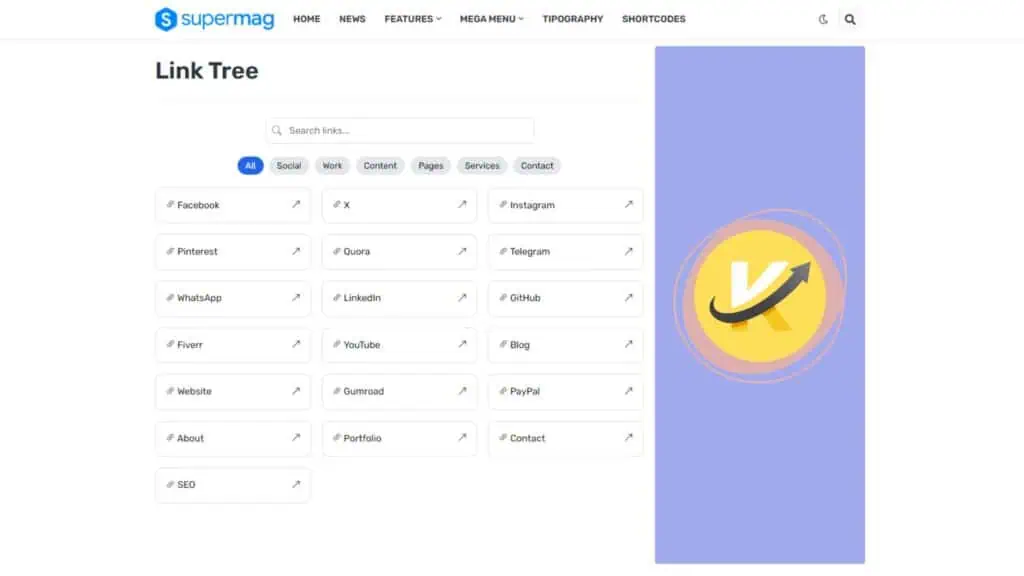
Once you add all the links, publish the page and add the page link in Header menu or Footer area of your website.
Related Articles:
How To Add An Animated Link Hover Effect In Blogger & WordPress
How To Create Automatic Internal linking In Blogger Websites
Final Thoughts
Creating your own Linktree alternative is one of the smartest moves you can make.
You:
- Own your audience
- Build your brand
- Keep everything under your control
And the best part?
👉 It takes less than 10 minutes to set up.