How to Add Floating Live Search Button in Blogger
A good search feature can make a Blogger website much easier to use, especially when you have published a lot of posts.
Blogger already has a basic search option, but it usually takes the visitor to a separate search results page. A live search feels much faster because visitors can start typing and see matching posts inside a small search window without leaving the current page.
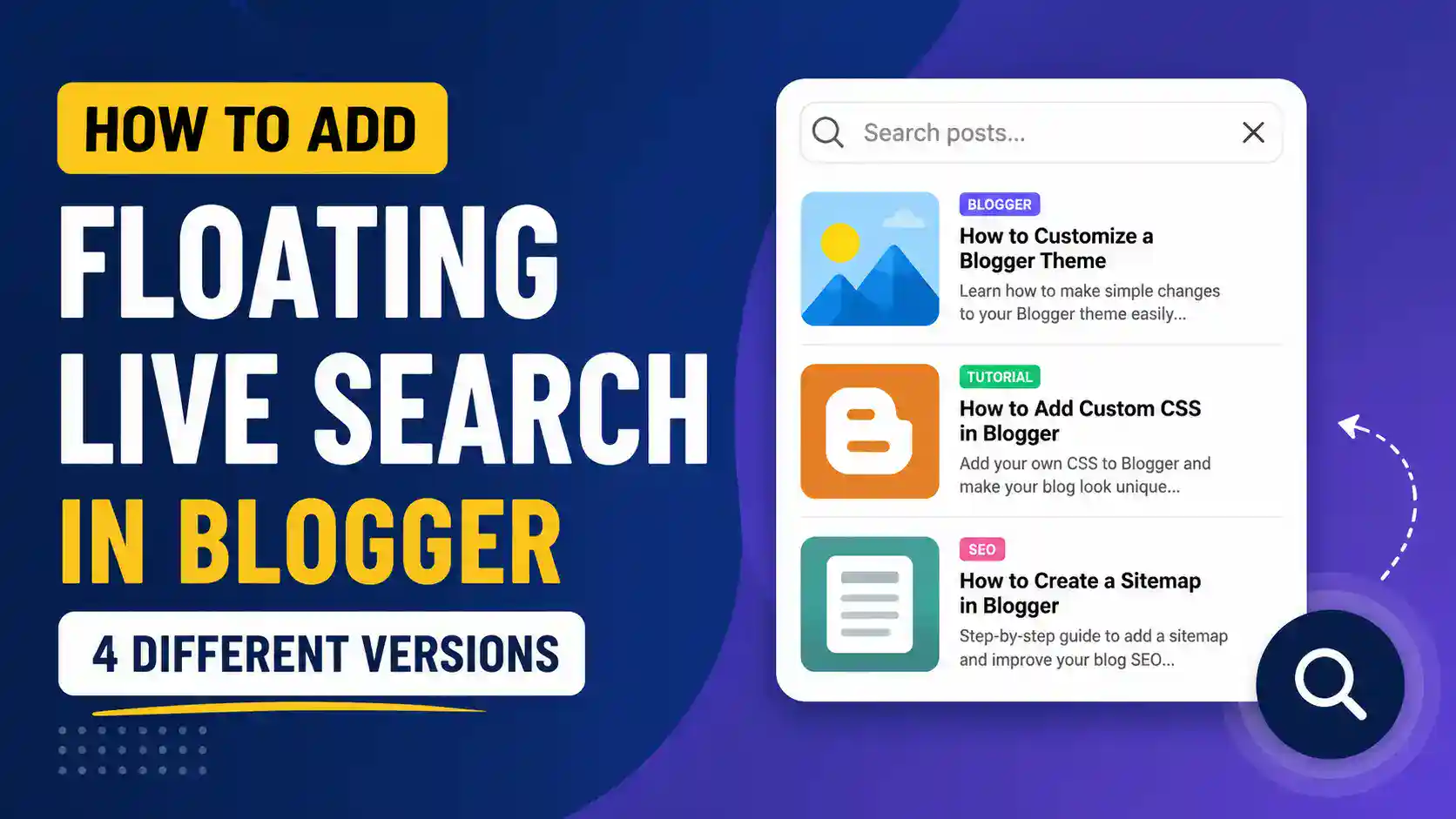
In this tutorial, I am sharing four different versions of a floating live search for Blogger. You can choose the one that matches your website design and the amount of information you want to show in the search results.
The four versions gradually add more information:
- Title Only
- Title + Labels
- Title + Labels + Excerpt
- Thumbnail + Labels + Title + Excerpt
All four versions use Blogger’s own post feed to find the posts, so you don’t need to create a separate database or use an external search service. The code uses Blogger’s JSONP feed request to search posts as the visitor types.
What Is Floating Live Search?
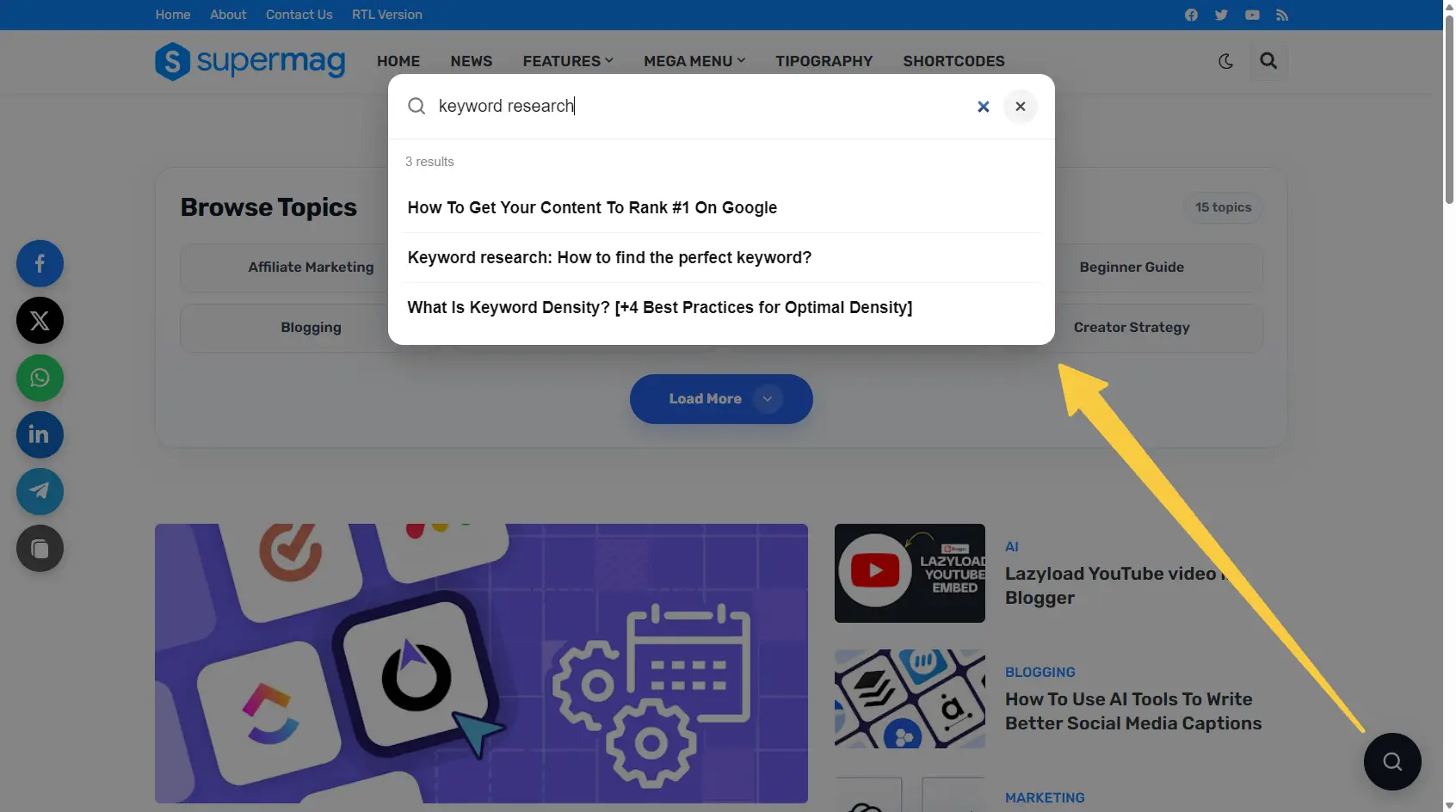
A floating live search is a search button that stays visible on the screen while a visitor browses your website.
For example, you can place a small search icon in the bottom-right corner of your Blogger website.
When someone clicks it:
- A search box opens.
- The visitor can type a keyword.
- Matching posts appear automatically.
- They can click any result to open the post.
The search button in these versions is fixed to the bottom-right corner of the screen. The first version, for example, uses a circular 54px button positioned 20px from the right and bottom edges.
This is useful because the visitor doesn’t have to scroll back to the header just to search for something.
How Does the Live Search Work?
You don’t need to understand all the JavaScript to use this widget.
At a basic level, the process looks like this:
Visitor clicks search → Search popup opens → Visitor types → Blogger feed is searched → Results appear
The code sends the search query to Blogger’s post feed using a URL similar to: /feeds/posts/default
It then uses the search query and receives the matching posts.
The code also waits for a short time while the visitor is typing before making the request. This is called debouncing. It helps prevent a new request from being sent for every single keystroke.
For example, the code can wait 300 milliseconds after the visitor stops typing before searching.
Before You Add the Code
Before making any changes to your Blogger theme, I recommend taking a backup.
Go to: Blogger → Theme → Backup
Download a copy of your current theme.
This is especially important if you are adding code directly to the theme HTML.
Also, test the search on a desktop and mobile device after adding it.
How to Add Live Search to Blogger

The basic installation process is similar for all four versions.
Log in to your Blogger account and open the blog where you want to add the search feature.
Then go to: Theme → Edit HTML
This will open your Blogger theme code.
You can usually use Ctrl + F to find it. Or just scroll to the end of your theme code and you will find the closing body tag.
Choose one version and paste it before the </body> tag.
After adding the code, click Save. Now open your blog and look at the bottom-right corner. You should see the floating search button. Click it and start typing a keyword.
Version 1: Simple Live Search With Post Titles
If you want a clean and lightweight search box, this is the version I would recommend starting with.
<!-- BLOGGER LIVE SEARCH (Title Only) -->
<style type='text/css'>
#fastSearchBtn{
position:fixed;
right:20px;
bottom:20px;
width:54px;
height:54px;
padding:0;
border:0;
border-radius:50%;
background:#111827;
color:#fff;
cursor:pointer;
z-index:9999999;
display:flex;
align-items:center;
justify-content:center;
box-shadow:0 5px 18px rgba(0,0,0,.22);
}
#fastSearchBtn svg{
width:23px;
height:23px;
}
#fastSearchOverlay{
position:fixed;
top:0;
right:0;
bottom:0;
left:0;
z-index:10000000;
display:none;
padding:16px;
background:rgba(0,0,0,.48);
align-items:flex-start;
justify-content:center;
}
#fastSearchOverlay.open{
display:flex;
}
#fastSearchBox{
width:100%;
max-width:620px;
margin-top:7vh;
background:#fff;
border-radius:14px;
overflow:hidden;
box-shadow:0 12px 35px rgba(0,0,0,.25);
font-family:Arial,sans-serif;
}
.fast-search-head{
display:flex;
align-items:center;
gap:10px;
padding:14px 16px;
border-bottom:1px solid #eee;
}
.fast-search-icon{
width:21px;
height:21px;
flex:0 0 auto;
color:#777;
}
#fastSearchInput{
flex:1;
min-width:0;
padding:4px 0;
margin:0;
border:0;
outline:0;
background:transparent;
color:#111;
font-size:16px;
font-family:Arial,sans-serif;
}
#fastSearchInput::placeholder{
color:#999;
}
#fastSearchClose{
width:32px;
height:32px;
padding:0;
border:0;
border-radius:50%;
background:#f3f3f3;
color:#444;
cursor:pointer;
font-size:20px;
line-height:32px;
}
#fastSearchStatus{
padding:11px 16px 5px;
color:#888;
font-size:12px;
}
#fastSearchResults{
max-height:420px;
overflow-y:auto;
padding:5px 8px 12px;
}
.fast-search-result{
display:block;
padding:12px 10px;
border-radius:8px;
color:#111;
text-decoration:none !important;
font-size:15px;
line-height:1.45;
font-weight:600;
}
.fast-search-result:hover{
background:#f5f5f5;
}
.fast-search-result + .fast-search-result{
border-top:1px solid #f2f2f2;
}
/* Mobile */
@media screen and (max-width:600px){
#fastSearchBtn{
right:15px;
bottom:15px;
width:52px;
height:52px;
}
#fastSearchOverlay{
padding:10px;
}
#fastSearchBox{
margin-top:4vh;
}
#fastSearchResults{
max-height:65vh;
}
}
</style>
<button aria-label='Search' id='fastSearchBtn' title='Search' type='button'>
<svg aria-hidden='true' fill='none' stroke='currentColor' stroke-linecap='round' stroke-linejoin='round' stroke-width='2' viewBox='0 0 24 24'>
<circle cx='11' cy='11' r='7'/>
<path d='M20 20l-3.8-3.8'/>
</svg>
</button>
<div aria-hidden='true' id='fastSearchOverlay'>
<div aria-label='Search posts' aria-modal='true' id='fastSearchBox' role='dialog'>
<div class='fast-search-head'>
<svg aria-hidden='true' class='fast-search-icon' fill='none' stroke='currentColor' stroke-linecap='round' stroke-linejoin='round' stroke-width='2' viewBox='0 0 24 24'>
<circle cx='11' cy='11' r='7'/>
<path d='M20 20l-3.8-3.8'/>
</svg>
<input aria-label='Search posts' autocomplete='off' id='fastSearchInput' placeholder='Search posts...' spellcheck='false' type='search'/>
<button aria-label='Close' id='fastSearchClose' type='button'>
×
</button>
</div>
<div id='fastSearchStatus'>
Start typing to search...
</div>
<div id='fastSearchResults'/>
</div>
</div>
<script type='text/javascript'>
//<![CDATA[
(function(){
'use strict';
/* Max Search Results at a time */
var MAX_RESULTS = 6;
var MIN_CHARS = 2;
var SEARCH_DELAY = 250;
var openBtn =
document.getElementById(
'fastSearchBtn'
);
var overlay =
document.getElementById(
'fastSearchOverlay'
);
var closeBtn =
document.getElementById(
'fastSearchClose'
);
var input =
document.getElementById(
'fastSearchInput'
);
var results =
document.getElementById(
'fastSearchResults'
);
var status =
document.getElementById(
'fastSearchStatus'
);
if(
!openBtn ||
!overlay ||
!closeBtn ||
!input ||
!results ||
!status
){
return;
}
var timer = null;
var requestId = 0;
var cache = {};
function openSearch(){
overlay.className =
'open';
overlay.setAttribute(
'aria-hidden',
'false'
);
setTimeout(
function(){
input.focus();
},
20
);
}
function closeSearch(){
overlay.className =
'';
overlay.setAttribute(
'aria-hidden',
'true'
);
}
function getPostUrl(entry){
var links =
entry.link || [];
for(
var i = 0;
i < links.length;
i++
){
if(
links[i].rel ===
'alternate'
){
return links[i].href;
}
}
return '#';
}
function displayResults(entries){
results.innerHTML = '';
if(
!entries ||
entries.length === 0
){
status.textContent =
'No posts found.';
return;
}
var fragment =
document.createDocumentFragment();
for(
var i = 0;
i < entries.length;
i++
){
var entry =
entries[i];
var link =
document.createElement(
'a'
);
link.className =
'fast-search-result';
link.href =
getPostUrl(entry);
var title =
'Untitled Post';
if(
entry.title &&
entry.title.$t
){
title =
entry.title.$t;
}
link.appendChild(
document.createTextNode(
title
)
);
fragment.appendChild(
link
);
}
results.appendChild(
fragment
);
status.textContent =
entries.length +
(
entries.length === 1
? ' result'
: ' results'
);
}
function searchPosts(query){
query =
query.replace(
/^\s+|\s+$/g,
''
);
var cacheKey =
query.toLowerCase();
if(
query.length <
MIN_CHARS
){
requestId++;
results.innerHTML =
'';
if(
query.length === 0
){
status.textContent =
'Start typing to search...';
}
else{
status.textContent =
'Type at least ' +
MIN_CHARS +
' characters.';
}
return;
}
if(cache[cacheKey]){
displayResults(
cache[cacheKey]
);
return;
}
var currentRequest =
++requestId;
status.textContent =
'Searching...';
results.innerHTML =
'';
var callbackName =
'fastBloggerSearch_' +
new Date().getTime() +
'_' +
currentRequest;
var script =
document.createElement(
'script'
);
var finished =
false;
function cleanup(){
if(finished){
return;
}
finished =
true;
if(
script.parentNode
){
script.parentNode
.removeChild(
script
);
}
try{
delete window[
callbackName
];
}
catch(error){
window[
callbackName
] = null;
}
}
window[
callbackName
] = function(data){
/*
Ignore old results if visitor
already typed a newer search.
*/
if(
currentRequest !==
requestId
){
cleanup();
return;
}
var entries = [];
if(
data &&
data.feed &&
data.feed.entry
){
entries =
data.feed.entry;
}
cache[cacheKey] =
entries;
displayResults(
entries
);
cleanup();
};
script.onerror =
function(){
if(
currentRequest ===
requestId
){
status.textContent =
'Search unavailable.';
}
cleanup();
};
var feed =
window.location.protocol +
'//' +
window.location.host +
'/feeds/posts/default';
script.src =
feed +
'?alt=json-in-script' +
'&max-results=' +
MAX_RESULTS +
'&q=' +
encodeURIComponent(
query
) +
'&callback=' +
encodeURIComponent(
callbackName
);
document
.getElementsByTagName(
'head'
)[0]
.appendChild(
script
);
}
function handleInput(){
clearTimeout(
timer
);
var query =
input.value;
timer =
setTimeout(
function(){
searchPosts(
query
);
},
SEARCH_DELAY
);
}
if(
input.addEventListener
){
input.addEventListener(
'input',
handleInput,
false
);
}
else{
input.onkeyup =
handleInput;
}
openBtn.onclick =
function(){
openSearch();
};
closeBtn.onclick =
function(){
closeSearch();
};
overlay.onclick =
function(event){
event =
event ||
window.event;
if(
event.target ===
overlay
){
closeSearch();
}
};
document.onkeydown =
function(event){
event =
event ||
window.event;
var key =
event.key ||
event.keyCode;
if(
key === 'Escape' ||
key === 27
){
if(
overlay.className ===
'open'
){
closeSearch();
}
}
};
})();
//]]>
</script>If you want to show more results, find: var MAX_RESULTS = 6; and change the value from 6 to the number of results you want.
Download Code for Live search button for Blogger (All Versions)
- Version 1: Live Search With Titles only
- Version 2: Live Search With Labels
- Version 3: Title + Labels + Excerpt
- Version 4: Thumbnail + Label + Title + Excerpt
My recommendation
- For a simple Blogger website, I would start with Version 1.
- If your website has properly organized labels, Version 2 is a nice upgrade.
- For a tutorial or content-heavy website, I prefer Version 3 because the excerpt gives visitors more information.
- If your blog relies heavily on featured images and you want a more visual design, go with Version 4.
Final Thoughts
A floating live search is a small addition, but it can make a Blogger website feel much easier to navigate. The nice thing about these four versions is that you don’t have to use the most complicated design from the beginning.
If you face any issue then let me know in the comment section.