How to Add Subscriptions to WooCommerce (Step-by-Step)
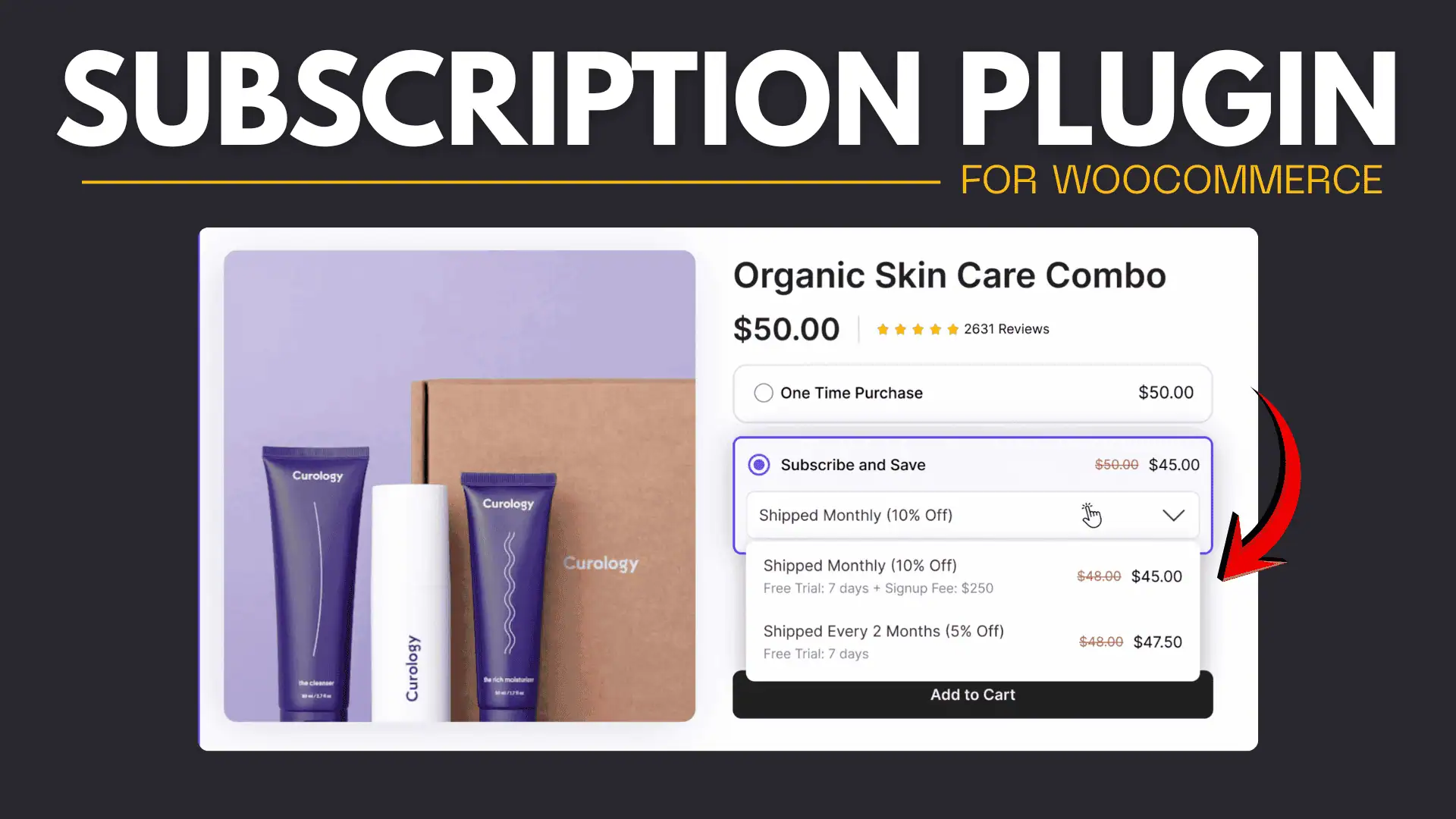
If you want to generate recurring revenue from your online store, adding subscriptions is one of the best strategies. With the Subscriptions for WooCommerce by Sublium plugin, you can easily create subscription-based products without complicated setups.
In this guide, you’ll learn how to add subscriptions to WooCommerce using Sublium, step by step.
What is Sublium for WooCommerce?
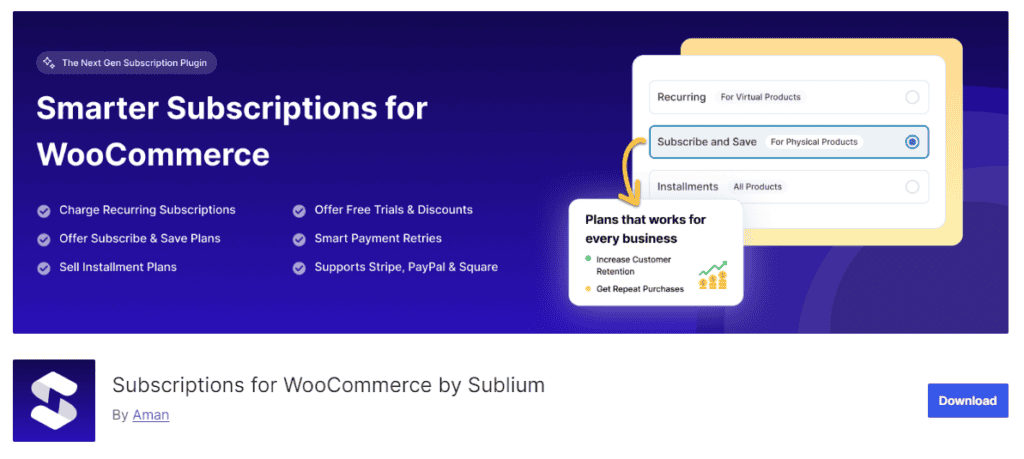
Sublium is a powerful plugin designed to add subscription functionality to your WordPress website. It allows you to sell products or services on a recurring basis such as:
- Monthly product deliveries
- Weekly service plans
- Annual memberships
- Digital subscriptions
It’s built to handle billing, renewals, retention flows, and analytics so stores can turn one-time purchases into predictable recurring revenue.

👉 Plugin: Subscriptions for WooCommerce by Sublium
Why Use Subscriptions in WooCommerce?
Adding subscriptions to your store offers multiple benefits:
- Predictable recurring income
- Higher customer lifetime value
- Improved customer retention
- Automated billing and renewals
This model works great for:
- Digital products (courses, tools)
- Physical products (coffee, skincare, supplements)
- Services (maintenance, consulting)
Follow the video tutorial for step by step process of installing the sublium plugin and setup subscription on woocommerce.

Installation & Setup
- Install the Sublium plugin: In WordPress, go to Plugins › Add New, search for “Sublium Subscriptions,” and click Install Now.
- Activate the plugin: After installation, click Activate. A new Sublium menu will appear in the WooCommerce admin area.
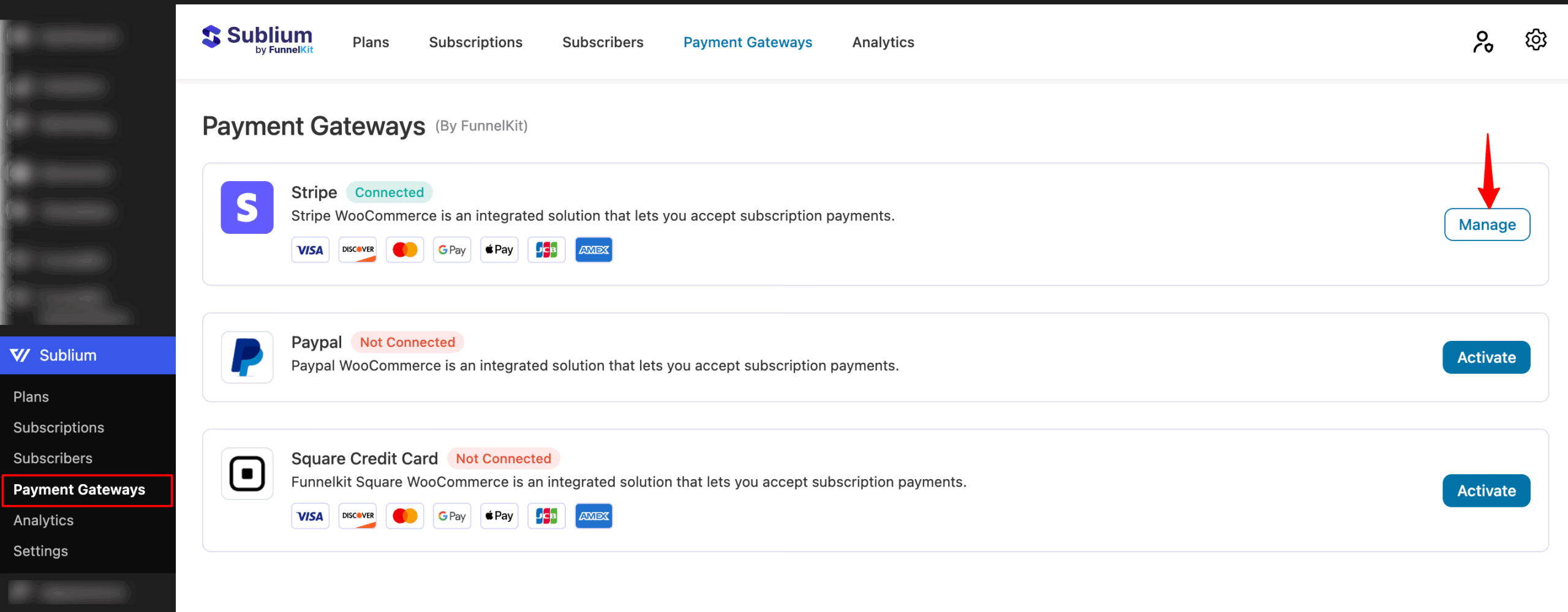
- Connect your payment gateway: Install and activate a supported gateway plugin (e.g. FunnelKit’s Stripe for WooCommerce, Square, or PayPal). Then in Sublium’s settings, connect your gateway (you may need to log in to the gateway, enter any one-time PIN, and enable webhooks). For Stripe, Sublium guides you through logging into Stripe, verifying by OTP, and setting up webhooks and express checkout.

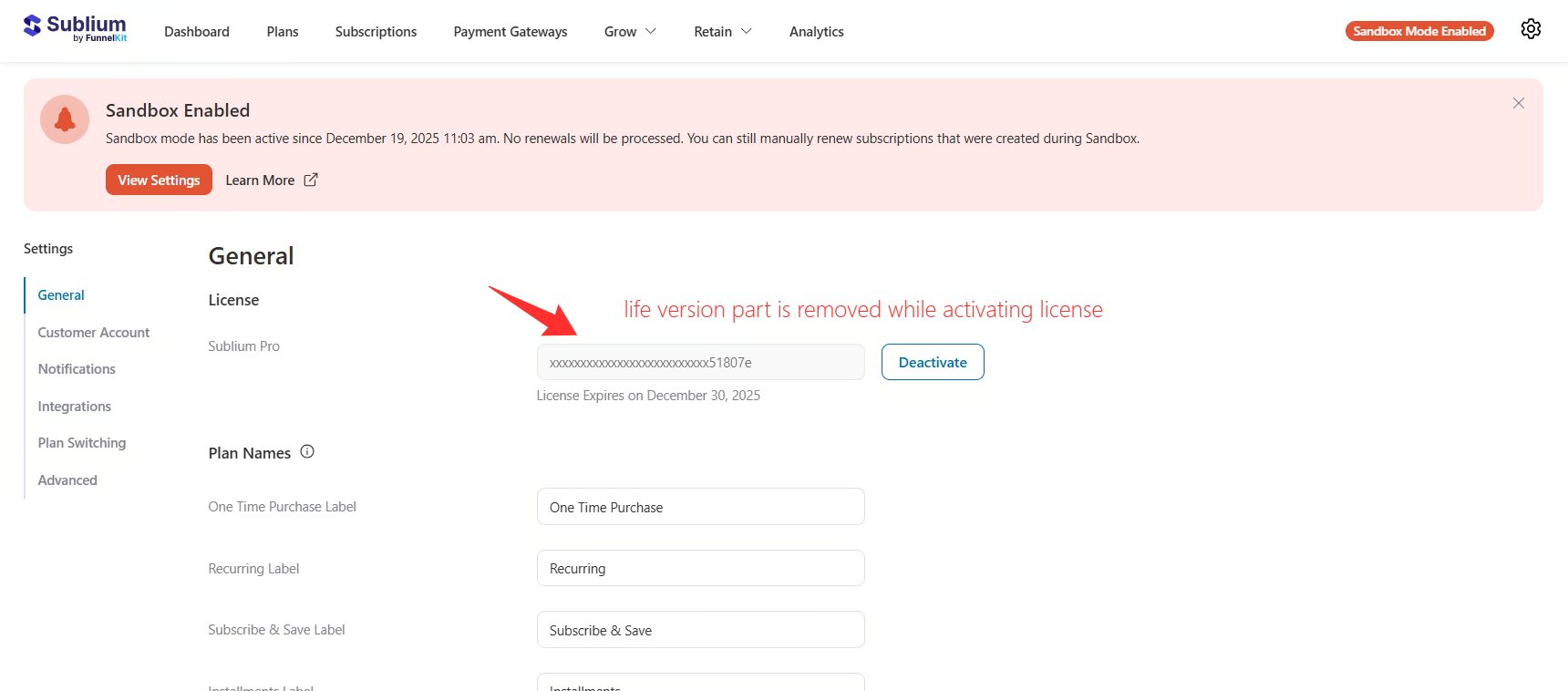
- (Pro only) Activate your license: If you purchased Sublium Pro, copy the license key from your Sublium account page and paste it into Sublium › Settings › General. Save to activate premium features. The Lite (free) version requires no license key.

- Configure global settings: In Sublium › Settings, review defaults like emails, billing intervals, and retention tools. Ensure site settings (WooCommerce currency, taxes, permalinks) are correct. Enable WP-Cron or a real server cron job so scheduled tasks (renewals, dunning emails, analytics updates) run reliably.
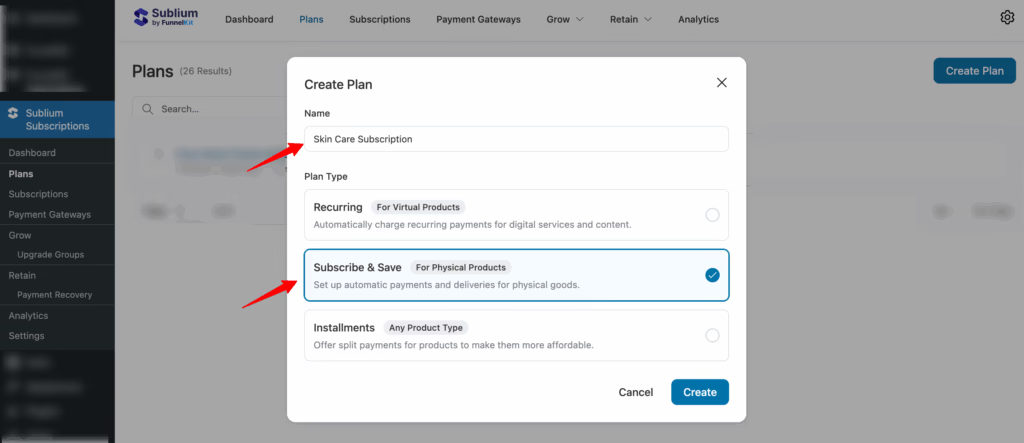
- Create your first subscription plan: Sublium opens an onboarding wizard on first run. Use it to create a plan: give it a name (e.g. “Monthly Membership”) and choose a plan type (Recurring, Subscribe & Save, or Installments). Set the billing frequency and interval (days, weeks, months, or years). Optionally add a free trial period or one-time signup fee. Define whether the subscription is fixed-term or runs “until cancelled”. Save and enable the plan (toggle it on).

- Assign the plan to products: In the plan editor under “Plan Products,” select which WooCommerce product(s) the plan applies to. You can assign one plan to all products in a category or individual items. Once saved, these products become subscription products on the storefront.
- Test a subscription checkout: On the front end, add the subscription product to cart and complete a purchase (you can use your gateway’s test mode). After purchase, Sublium will create a subscription record and schedule renewals in WooCommerce. The initial order behaves like a normal order, and future renewals will be charged automatically on the specified dates
The official WooCommerce Subscriptions extension (by WooCommerce.com) is the industry standard (supports all features and many gateways) but costs $139/yr and requires WooCommerce Memberships for content access control.
Other popular plugins include YITH WooCommerce Subscription (free and premium editions supporting trials, signup fees, Stripe/PayPal) and SUMO Subscriptions for WooCommerce (good alternative with Low one time fees of $49). Each alternative has its own pricing and feature set, so review them to see what fits your needs.
Frequently Asked Questions (FAQs)
Final Thoughts
Adding subscriptions to WooCommerce using Sublium is a simple and effective way to build a steady income stream. You don’t need complex coding or expensive tools.
With the right setup, you can turn your store into a recurring revenue machine.