How to Install WordPress on GoDaddy? (Step-By-Step)
Whether you’re starting a personal blog, business website, portfolio, or online store, WordPress is one of the easiest and most powerful content management systems available. If you’ve purchased hosting from GoDaddy, installing WordPress only takes a few minutes.
In this guide, you’ll learn how to install WordPress on GoDaddy using the one-click installer and the manual installation method. We’ll also cover SSL setup, post-installation settings, and common troubleshooting tips.
What You’ll Need
Before installing WordPress, make sure you have:
| Requirement | Details |
|---|---|
| GoDaddy Hosting | Shared, Deluxe, Ultimate, VPS, or Managed WordPress |
| Domain Name | Connected to your hosting account |
| GoDaddy Account | Access to your hosting dashboard |
Tip: If you purchased your domain and hosting together from GoDaddy, they’re usually connected automatically.
Installation Methods
GoDaddy offers two ways to install WordPress.
| Method | Difficulty | Time | Recommended For |
| One-Click Installer | Easy | 5–10 minutes | Beginners |
| Manual Installation | Moderate | 15–30 minutes | Advanced users |
Most users should choose the One-Click Installer because it’s faster and requires no coding.
Method 1: Install WordPress Using GoDaddy’s One-Click Installer
Step 1: Log in to GoDaddy
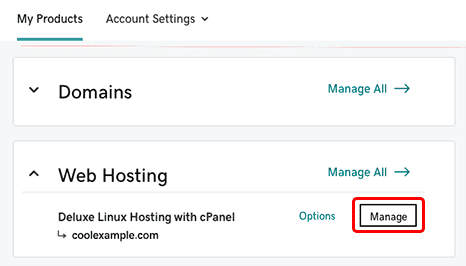
Sign in to your GoDaddy account and open My Products.
Locate your hosting plan and click Manage.
Step 2: Open the Hosting Dashboard
Depending on your hosting type, you’ll see either:
- cPanel Hosting
- Hosting Dashboard
- Managed WordPress Dashboard
Open the dashboard for your hosting account.
Step 3: Start the WordPress Installation
Look for one of these options:
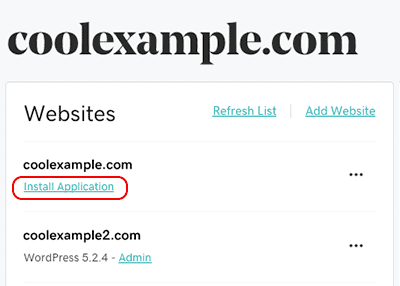
- Install Application
- WordPress
- Websites + Marketing
- Managed WordPress
Click Install WordPress.
Step 4: Select Your Domain
Choose the domain where WordPress should be installed.
Examples:
- example.com (main website)
- blog.example.com (subdomain)
- example.com/blog (subdirectory)
If this is your primary website, install WordPress in the root directory.
Step 5: Create Your Administrator Account
Fill in the required information:
- Site Name
- Username
- Strong Password
- Email Address
Choose a strong password with uppercase letters, numbers, and symbols.
Step 6: Complete the Installation
Click Install.
GoDaddy will:
- Create the database
- Install WordPress
- Configure the website
- Set up the admin panel
This usually takes a few minutes.
Method 2: Manual WordPress Installation
If you prefer complete control over the installation:
- Download the latest WordPress package from wordpress.org.
- Upload the files to your hosting using File Manager or FTP.
- Create a MySQL database in cPanel.
- Assign a database user with full privileges.
- Visit your domain in a browser.
- Enter the database details.
- Create your administrator account.
- Finish the installation.
Manual installation is useful if you want a custom setup or your hosting doesn’t include an automatic installer.
You can also watch the video to learn the step-by-step installation process.
That’s it! You have successfully installed WordPress on GoDaddy. You can now start customizing your site and adding content.
Note: If you encounter any issues during the installation process, GoDaddy offers 24/7 customer support to assist you. You can contact them through the “Help” section of your hosting panel or by calling their customer support line.
Log in to WordPress
After installation, visit:
https://yourdomain.com/wp-admin
Enter your username and password.
You’ll now see the WordPress Dashboard where you can create pages, publish blog posts, install themes, and manage plugins.
Sure, here are a few more tips to consider when installing WordPress on GoDaddy:
Make sure you have a domain name registered with GoDaddy before attempting to install WordPress. If you don’t have a domain name yet, you can purchase one through GoDaddy or transfer an existing domain to your GoDaddy account.
It’s a good idea to back up your existing website (if any) before installing WordPress. This will help you restore your site if something goes wrong during the installation process. You can use GoDaddy’s built-in backup feature or a third-party plugin to create backups of your site.
You can customize the appearance of your WordPress site by installing themes and plugins. There are thousands of free and premium themes and plugins available, so you can choose the ones that best suit your needs.
To create content for your WordPress site, you can use the built-in editor to add pages and posts. You can also use custom post types and taxonomies to organize your content in a more structured way.
If you want to customize the functionality of your WordPress site, you can use custom code or hire a developer to create custom plugins and themes for you.
Don’t forget to keep your WordPress site up to date. New versions of WordPress are released regularly, and it’s important to keep your site updated to ensure that it remains secure and functioning properly. You can update WordPress from the dashboard, or use a plugin to handle updates automatically.
Overall, installing WordPress on GoDaddy is a straightforward process that can help you create a professional-looking website in no time. With the right tools and resources, you can create a website that meets all of your needs and goals.
FAQs
If you have any doubts regarding this, do let me know in the comment section.
Read Also: How to Quicky reset Wordpress website?