How to Add a “Cancel Order” Button in WooCommerce (Step-by-Step)
Imagine this: a customer places an order on your store, then realizes two minutes later that they picked the wrong size, the wrong address, or simply changed their mind. They look for a “Cancel Order” button in their account… and there isn’t one. Their only option is to email you, open a support ticket, or file a dispute with their bank.
That’s a frustrating experience for the customer and extra work for you. Studies on e-commerce behavior consistently show that a smooth cancellation and refund process builds trust — and customers who trust a store come back.
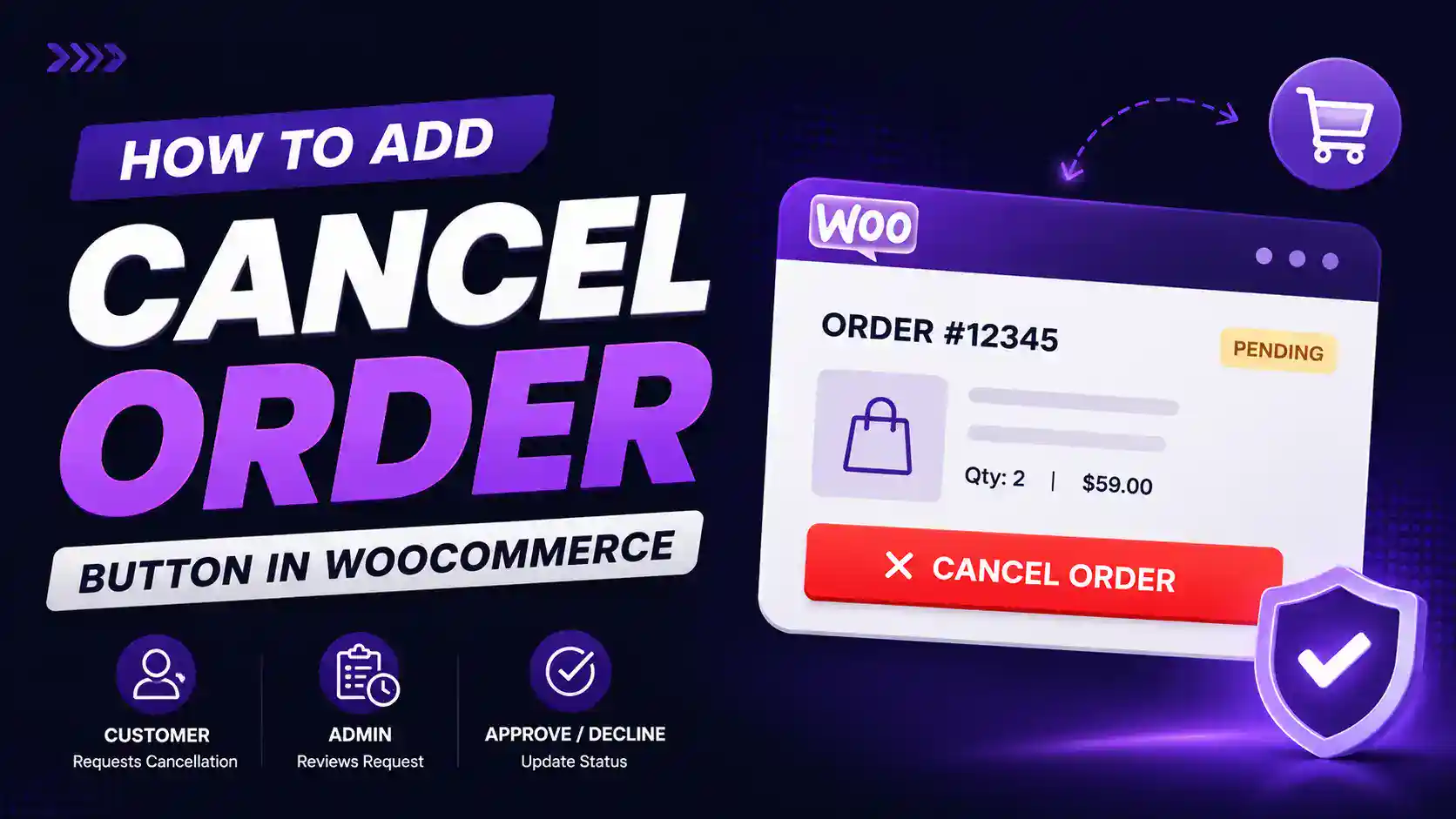
In this guide, you’ll learn how to allow customers to cancel orders in WooCommerce the right way: by letting them send a cancellation request that you can approve or decline. We’ll use the free WC Cancel Order plugin, and you won’t need to write a single line of code.
Does WooCommerce Have a Built-In Cancel Order Option?
Yes — but only in a very limited way, and it’s probably not what you’re hoping for.

Out of the box, WooCommerce only lets customers cancel an order when the order hasn’t been paid yet. Specifically, a “Cancel” link appears on the My Account → Orders page only when:
- The order status is Pending payment or Failed, and
- The cancellation happens within the “hold stock” time window set in your inventory settings.
The moment a customer completes payment and the order moves to Processing (or On Hold, or Completed), that cancel link disappears. From that point on, the customer has no way to cancel the order themselves. WooCommerce simply doesn’t provide a front-end option for it.
So if you’ve ever wondered why your customers say they “can’t find the cancel button” — this is why. For paid orders, the button doesn’t exist.
Why WooCommerce Doesn’t Allow Cancellation for Paid Orders by Default
This isn’t an oversight. It’s a deliberate design decision, and once you look at what happens behind the scenes of a paid order, it makes sense.
Money has already moved. Once a payment is captured, cancelling an order isn’t just a status change — it usually means a refund. Refunds work differently across every payment gateway (Stripe, PayPal, Razorpay, bank transfer, cash on delivery), and some payments can’t be automatically reversed at all. WooCommerce can’t safely assume that flipping an order to “Cancelled” should also trigger a refund.
Fulfillment may already be in motion. By the time a customer clicks cancel, your team might have already packed the box, printed the shipping label, or handed the parcel to the courier. An instant, unsupervised cancellation could leave you shipping products for orders that no longer exist.
Inventory and accounting get complicated. Stock levels, tax records, and invoices are all affected when an order is cancelled. Most store owners want a human to review these situations rather than letting them happen automatically.
Abuse prevention. An unrestricted cancel button could be misused — for example, cancelling an order after it ships to try to get free products.
Because every store handles these situations differently, WooCommerce leaves post-payment cancellation up to you. And that’s exactly where a request-based cancellation system shines: the customer asks, and you decide. The WC Cancel Order plugin implements exactly this workflow.
The Solution: WC Cancel Order Plugin
WC Cancel Order is a free plugin by WpExperts Hub, available on the official WordPress.org repository. It has 5,000+ active installations and a 4.9 out of 5 star rating, which is a strong signal of reliability for a niche plugin.
Instead of adding a risky “instant cancel” button, it adds a “Cancellation Request” system to your store:
- The customer opens their order on the My Account page and clicks a cancellation request button.
- A popup asks them for a cancellation reason (you decide if the reason is required or optional).
- You (the admin) get an email notification and see the request in a dedicated WC Cancel area in your dashboard.
- You approve or decline the request with one click.
- The customer automatically receives an email telling them your decision.
Key features of the free version:
- Customers can send cancellation requests with details right from the My Account order page.
- Email notifications for both the admin (new request) and the customer (approved/declined).
- A dedicated admin area (WooCommerce → WC Cancel) to manage all requests in one place.
- Guest checkout support — guest customers get a unique cancellation link in their order email, so even shoppers without an account can request a cancellation.
- Restrict requests to specific order statuses (for example, allow requests only while an order is “Processing,” but not once it’s “Completed”).
- Make the cancellation reason field required or optional.
- Show the customer’s note inside the cancellation request popup.
- Translation ready, with translations already available in 12+ languages.

How to Install and Activate WC Cancel Order
Installing the plugin takes about two minutes:
- Log in to your WordPress dashboard.
- Go to Plugins → Add New.
- In the search box, type “WC Cancel Order”.
- Find the plugin by WpExperts Hub and click Install Now.
- When the installation finishes, click Activate.
That’s it — the plugin is now running. Next, let’s configure it.
How to Configure the Plugin Settings
After activation, the plugin adds a new settings tab inside WooCommerce:
- Go to WooCommerce → Settings.
- Click the WC Cancel tab.
- Configure the options to match your store policy:
- Allowed order statuses: Choose which order statuses can receive cancellation requests. A sensible default for most stores is Processing and On Hold. Avoid enabling it for Completed orders unless your return policy specifically allows it.
- Cancellation reason: Decide whether customers must give a reason. Requiring a reason is highly recommended — those reasons become valuable feedback about why people cancel (pricing, shipping speed, wrong item, found it cheaper elsewhere).
- Customer note display: Optionally show the customer’s order note inside the request popup for extra context.
- Save your changes.
To view incoming requests later, head to WooCommerce → WC Cancel — this is your cancellation request inbox.
How It Works for Your Customers
Here’s the experience from your customer’s point of view:
- They log in to your store and go to My Account → Orders.
- Next to any eligible order (based on the statuses you allowed), they see a cancellation request option.
- Clicking it opens a popup where they enter their reason for cancelling.
- They submit the request and see a confirmation.
- Once you respond, they receive an email letting them know whether the request was approved or declined.
For guest customers (people who checked out without creating an account), the plugin includes a unique cancellation request link in their order email. They click the link and can submit their request the same way — no login required.
This is a much better experience than “email us to cancel,” and it keeps everything documented inside WooCommerce instead of scattered across your inbox.
How to Approve or Decline Requests (Admin Side)
When a customer submits a request:
- You receive an email notification immediately.
- Open your dashboard and go to WooCommerce → WC Cancel.
- You’ll see the pending request along with the order details and the customer’s reason.
- Click to approve or decline the request.
- The customer is automatically notified of your decision by email.
If you approve the request, the order is cancelled and — importantly — the plugin restores the product stock/inventory for the cancelled items, so your stock counts stay accurate.
One thing to remember: approving a cancellation does not automatically refund the payment. Refunds still need to be processed the normal WooCommerce way — open the order, click Refund, and issue it through your payment gateway (or manually, depending on the payment method). This is actually a good thing: it keeps you in full control of the money side.
Technical Details Store Owners Should Know
You don’t need to be a developer to use this plugin, but these details are worth knowing (or passing to your developer):
- Requirements: WordPress 6.7 or higher and PHP 7.4 or higher. The plugin is tested up to recent WordPress releases.
- HPOS compatible: The plugin supports WooCommerce’s High-Performance Order Storage (the newer order database system). If your store has HPOS enabled, WC Cancel Order works fine with it.
- Multisite compatible: Works on WordPress multisite networks.
- Developer friendly: The plugin includes filters and hooks, so a developer can customize its behavior (for example, changing email content or adding custom logic when a request is approved).
- Stock handling: Inventory is automatically restored when a cancellation request is accepted.
- Emails: The plugin’s notifications integrate with the WooCommerce email system, so they follow your store’s email styling.
- Translations: The plugin is translation ready and already translated into a dozen languages, including Spanish, Italian, Japanese, Korean, Dutch, and Russian.
- A note on WooCommerce’s own filter: If you only need to extend WooCommerce’s built-in cancel link (for unpaid orders) to more statuses, developers can use the woocommerce_valid_order_statuses_for_cancel filter in code. However, this makes cancellation instant and unsupervised, which is risky for paid orders — the request/approval workflow of WC Cancel Order is the safer approach for most stores.
Free vs. Pro Version
The free version covers everything most stores need. The Pro version adds more control for stores with complex policies:
- Allow direct (instant) cancellation for specific order statuses, alongside request-based cancellation for others.
- Automatically assign a specific order status when a request is approved or declined.
- Enable cancellation requests only for specific user roles.
- Define predefined cancellation reasons shown as radio buttons (with optional extra text input).
- Time-limit the cancel button — for example, hide it 24 hours after the order is placed. This is one of the most useful Pro features, since many stores only accept cancellations before fulfillment begins.
- WooCommerce Subscriptions support, letting customers send cancellation requests for active subscriptions.
- Priority support.
Start with the free version. If you later find yourself wanting time limits or predefined reasons, upgrading is straightforward.
Best Practices for Handling Order Cancellations
A cancel button alone isn’t a cancellation policy. A few tips to make the system work well:
- Publish a clear cancellation policy. Tell customers on your FAQ or policy page how long they have to cancel and what happens after shipping. Fewer surprises means fewer disputes.
- Respond to requests quickly. The whole point is speed — try to approve or decline within a few hours during business days. A request that sits for three days defeats the purpose.
- Only allow requests for pre-fulfillment statuses. Processing and On Hold are the sweet spot. Once an order ships, it’s a return, not a cancellation.
- Read the cancellation reasons. They’re free market research. If “found it cheaper elsewhere” keeps appearing, that’s a pricing signal. If “shipping too slow” dominates, that’s a fulfillment signal.
- Process approved refunds promptly. An approved cancellation without a timely refund creates more frustration than no cancel option at all.
Frequently Asked Questions
Conclusion
WooCommerce doesn’t include a customer-facing cancel option for paid orders — and for good reason, since cancellations involve refunds, stock, and fulfillment decisions that deserve a human review. But “no button at all” isn’t a great answer for your customers either.
The WC Cancel Order plugin gives you the best of both worlds: customers get a simple, self-service way to request a cancellation right from their account, and you keep full control by approving or declining each request. It’s free, takes minutes to set up, requires zero code, and keeps every cancellation documented inside your dashboard.
Set it up today, pair it with a clear cancellation policy and fast response times, and you’ll turn one of e-commerce’s most frustrating moments into a trust-building experience.